How Murmo Notes Transcribes Voice Notes on Your iPhone
When you record a voice note, where does the audio go? With Murmo Notes the answer is short: it stays on your devices. Here is how that works, in the order things happen.
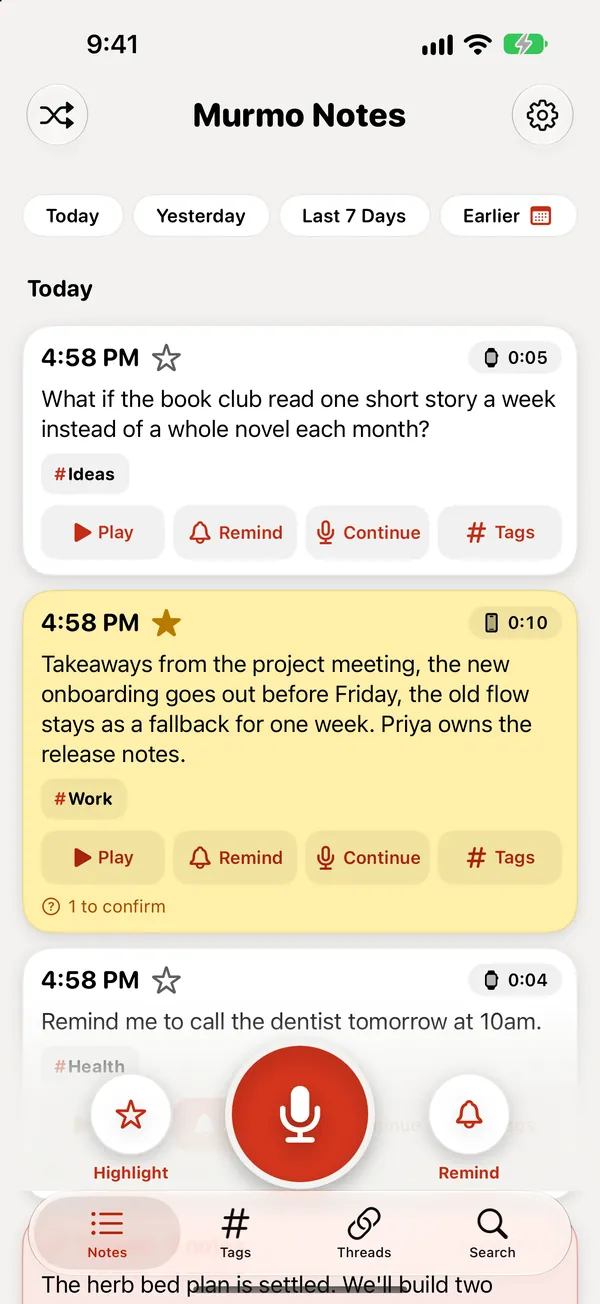
The recording
You record on the Apple Watch or on the iPhone. A recording from the watch is sent to the iPhone it is paired with. The app has no server of ours to upload to, and there is no account to create or sign in to.
A quick check before transcription
Before the recording is given to the speech model, the app checks whether anyone is actually speaking. A recording that was too quiet, or in which the sound analysis found nothing that sounds like speech, shows "Nothing heard" in the list. This matters because speech models sometimes invent words when they are fed background noise. The recording is still there and can be played back.
Transcription on the iPhone
Transcription is done on the iPhone itself. The speech recognition components the app uses, the open-source WhisperKit and a Whisper model, run on the device and do not send recordings anywhere. The speech model is installed together with the app. If that ever changes, the privacy policy will say so.
When the phone is near the watch, this happens in the background, even with the phone locked. After an app update, the first recording can be slower, because the phone has to get the speech model ready first.
What the app keeps
- The original recording, until you delete it, or until the time you chose under Keep Original Recordings (Forever, 1 Year or 3 Months) has passed.
- The transcript as it came out.
- Your changes, such as text edited with Edit, saved alongside the original. The original transcript is not changed.
The tidied-up text you see in the list is worked out each time it is shown. It is not saved as a second copy, and Show Original gives you the untouched transcript.
If the transcript is wrong
Names of people and products are the easiest to mishear. You have three options:
- Edit the text. A word you correct can be saved to Custom Words, and past and future recordings are corrected accordingly.
- Add the word to Custom Words yourself in Settings, entering what was heard and what it should be.
- Tap Transcribe Again on that recording.
Polish with Apple Intelligence (optional)
On iPhones that support it, Murmo Notes can offer Polish with Apple Intelligence. It is off until you turn it on, it runs on the device, and the original is kept. If you do not use it, nothing changes.
What the app does not do
- It does not need an account, and it does not sign you in anywhere.
- It does not keep a log of what you said. The diagnostic log holds only figures such as times, recording IDs and durations, and it is never sent to anyone automatically.
- It does not read your location unless you turn on Save Place. When you do, coordinates are rounded to about 110 metres and kept on your iPhone. To show a place name, they are sent to Apple's geocoding service, not to a server of ours.
Two small notes for completeness. The purchase check goes through Apple's own system. And if you use iCloud Backup or back up to a computer, Murmo Notes' data goes into your own backup like the data of any other app.
Deleting
Delete a recording in the app and the audio file, the transcript, your edits, its tags and its place in any thread go with it. Delete Murmo Notes from your iPhone and everything the app stored goes, apart from two small items in the keychain about your plan.
Questions about any of this? Write to support@murmonotes.com, and read the privacy policy for the full detail.