How to Get Your Apple Watch Voice Memos onto Your iPhone
You said something into your watch, and now you want it on your phone. This guide covers how that works in Murmo Notes, and what to do when the note has not shown up yet.
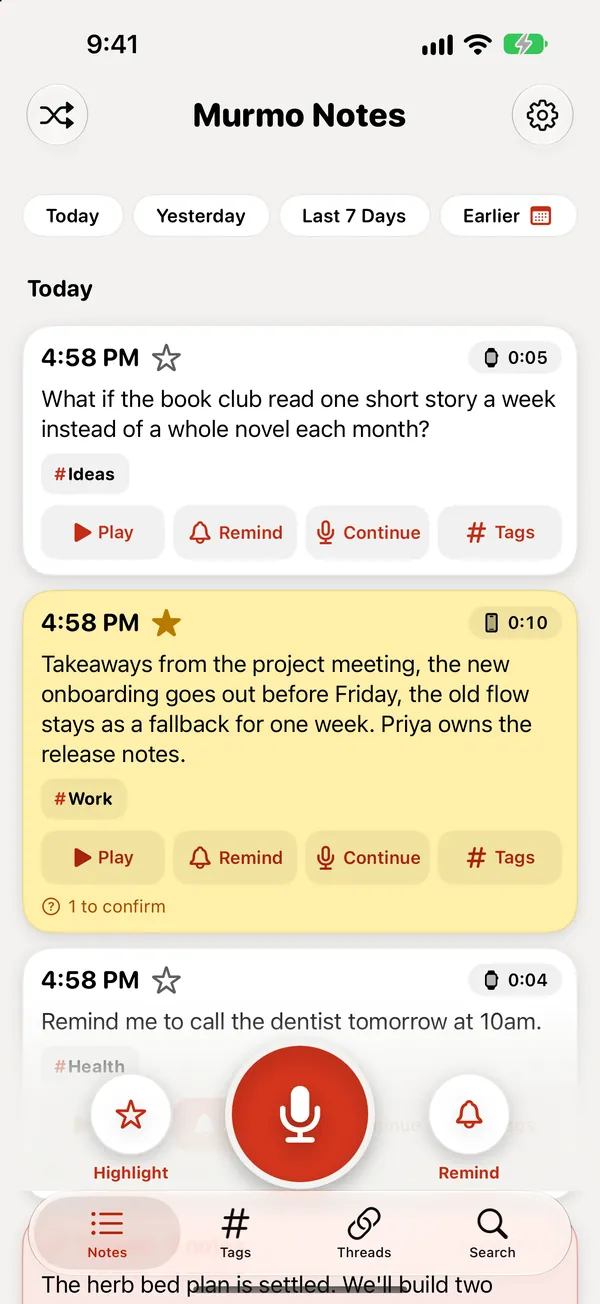
One thing to be clear about first: this is about recordings you make with Murmo Notes on the watch. It does not move recordings out of Apple's own Voice Memos app.
What happens when you stop recording
Nothing for you to do. When the iPhone is near the watch, the recording is sent over by itself and transcribed in the background, even with the phone locked. Open Murmo Notes on the iPhone and the note is in the list.
The watch only records. The iPhone turns the recording into text, so the text appears once the iPhone has received it.
If the note has not shown up
There are two common reasons, and neither means the recording is lost.
The phone is not nearby. The recording stays on the watch and is sent as soon as you are back near the phone. The watch tries again every couple of minutes. If it still has not gone across, open the app on the watch once.
The app was just updated. After an update, the iPhone has to get its speech model ready before it can transcribe the first recording, so that one is slower than usual. If background time runs out before it finishes, it carries on the next time you open the app on the iPhone.
You do not need to record it again
The watch keeps each recording until the iPhone confirms it has received it. Only then is the copy on the watch deleted. So if you are not sure whether something arrived, wait. Do not record the same thing twice.
Where the transcription happens
On the iPhone, not on the watch and not on a server. Murmo Notes has no server of ours for recordings to go to. The recording travels from your watch to your own iPhone, and the iPhone turns it into text.
What you can do with the note
Once it is on the iPhone, the note keeps the original recording and the transcript as it first came out. You can play it again, tap Show Original to see the untouched transcript, edit and copy the text, or tap Transcribe Again if it came out badly.
What you need
An Apple Watch with watchOS 26 and an iPhone with iOS 26 or later. The watch app belongs to the iPhone app, so install Murmo Notes on the paired iPhone first.
For the three ways to start a recording on the watch, see Start a Voice Note on Apple Watch, Then Read It on iPhone.