How to Keep a Voice Journal on iPhone and Apple Watch
A voice journal is what it sounds like: you say the entry instead of typing it. This guide shows how to set that up in Murmo Notes, what the app keeps, and how to find an entry again later.
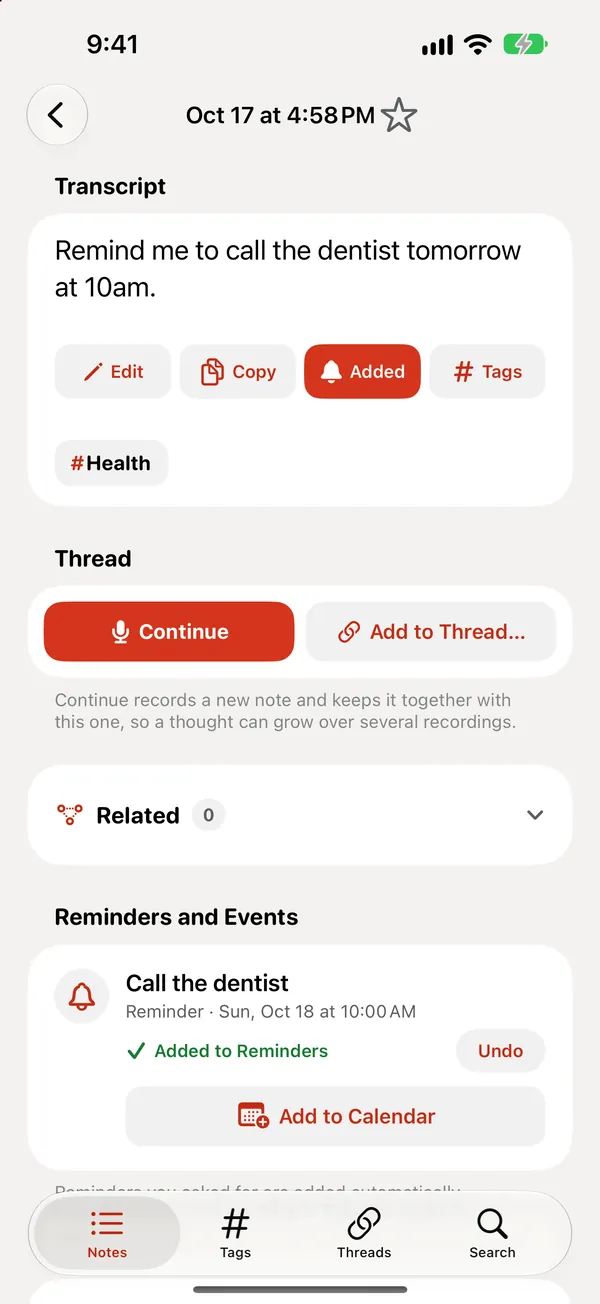
It makes no promises about what journaling will do for you. It covers what the app does.
Record wherever you are
You can start a recording on the Apple Watch or on the iPhone. On the watch, open the app, use the watch face complication, or ask Siri to "Record with Murmo Notes". On the iPhone, tap the record button. Say what you want to say and stop when you are done.
Transcription happens on the iPhone. The app has no server of ours for recordings to go to, and no account to sign in to.
What the app keeps
Each note keeps the original recording and the transcript as it first came out. What the list shows is a cleaned-up copy, and that is the part you edit. Tap Show Original to see the untouched transcript, or Play to hear yourself again.
You decide how long the audio stays. Keep Original Recordings can be set to Forever, 1 year or 3 months. When the time is up the audio goes and the text stays.
If a word came out wrong, edit it. You can save the correction to Custom Words, and the app fixes that word for you in later notes. Names of people and products are the easiest to mishear.
Find an entry again
Search finds a word in any note, so you can look for the name of a place or a person and get back to that day.
Keep one thought going
If something you said on Tuesday belongs with something you say today, tap Continue and Murmo adds the next part to the same thread. Threads are a Standard plan feature.
Keep it private
Turn on Lock with Face ID and reading your notes takes Face ID. Starting a recording does not, so you can still get a thought down quickly.
The notes are stored on your iPhone. If you ever want them elsewhere, Export Everything gives you every note's text plus the original recordings, as one file to save wherever you like.
What you need
An iPhone with iOS 26 or later. The Apple Watch is optional: the iPhone works fully on its own. To record on the watch, it needs watchOS 26, and the watch app belongs to the iPhone app, so install Murmo Notes on the paired iPhone first.
For how a recording gets from the watch to the phone, see How to Get Your Apple Watch Voice Memos onto Your iPhone.